Disclosure: this post contains affiliate links. If you sign up through one, we may earn a commission at no extra cost to you. We only recommend tools we use with our own clients.
How do you migrate from QuickBooks Online to Xero in Canada?
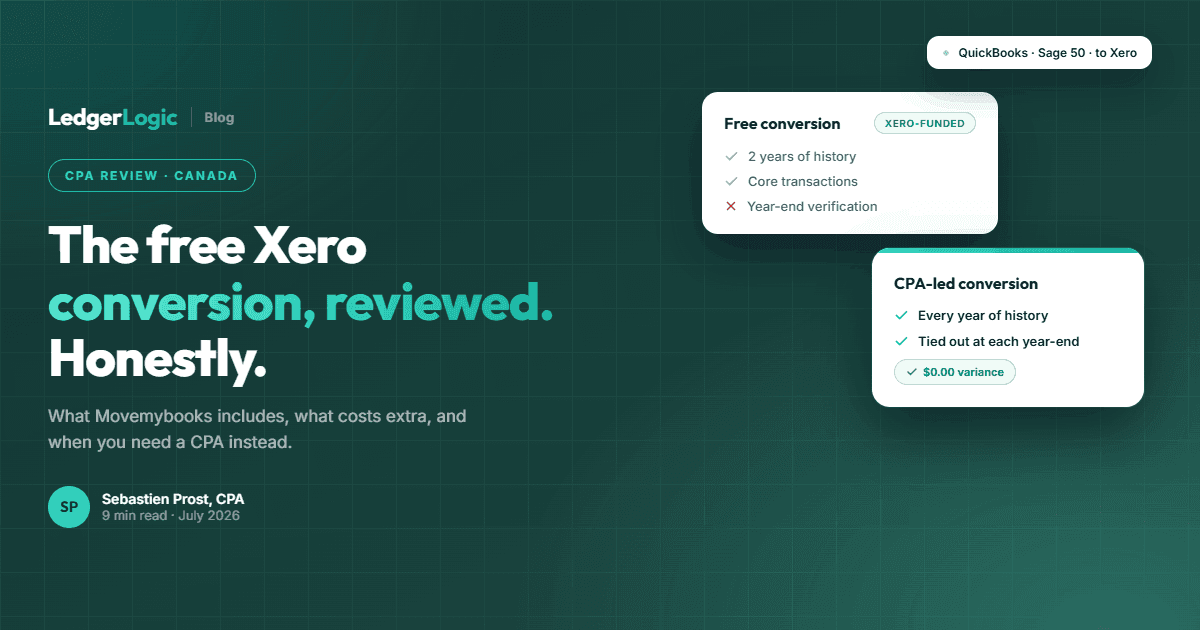
Canadian businesses can migrate from QuickBooks Online to Xero with Movemybooks, the conversion partner Xero names in Canada (free for up to 2 years of transaction history when a Xero partner moves the file into Standard or Premium), with the full migration taking 1-5 business days. Subscribe to Xero before the conversion: Xero Central says discounts do not apply to an organization a conversion service created. The biggest risk is incorrect GST/HST tax code mapping, so have a CPA verify the conversion before going live, especially if you sell across multiple provinces. The best time to switch is at the start of a new fiscal quarter or calendar year to keep your reporting periods clean.
At a Glance
We migrate QuickBooks files to Xero every month at LedgerLogic. Some go smoothly in a day. Others turn into a week-long project because of messy data, unmapped tax codes, or payroll complications that nobody planned for.
If you have already decided that Xero is the right fit, and if you have not, our full Xero vs QuickBooks comparison walks through the decision in detail, this guide covers the practical reality of making that switch as a Canadian business. We will walk through data prep, the three conversion methods, Canadian-specific tax pitfalls, and the post-migration verification steps that most guides skip entirely.
If you are coming from Sage rather than QuickBooks, we have a separate guide on migrating from Sage to Xero that covers the differences in that process.
This is not a theoretical overview. It is the process we follow with our own clients, written so you can either do it yourself or understand what your accountant should be doing for you.
Why Canadian Businesses Are Switching from QuickBooks to Xero
The usual reason is users: every Xero plan has unlimited users, where QuickBooks Online caps users by plan (1 on Lite and EasyStart, 3 on Essentials, 5 on Plus, 25 on Advanced). Hubdoc is also included with Xero Starter, Standard and Premium while connected. QuickBooks keeps the edge if you want payroll in the same login (a paid add-on) or your accountant works in QuickBooks. Our Xero vs QuickBooks comparison for Canadian businesses sets out prices, users, payroll and GST/HST side by side; this guide assumes you have decided and covers the move itself.
Three Ways to Migrate from QuickBooks to Xero: Which One Fits Your Business
There is no single best way to convert QuickBooks to Xero in Canada. The right method depends on the state of your data, how much history you need, and whether you have an accountant handling the process.
Migration Method Comparison
| Method | Best For | Time | Cost | History Transferred |
|---|---|---|---|---|
| Movemybooks (automated) | Clean QB files where you want full history | Depends on file size | Free for up to 2 years through a Xero partner on Standard or Premium | Current + prior fiscal year (additional years available for a fee) |
| Fresh start conversion | Messy QB files, or businesses that want a clean break | 1 day | Free (manual setup) | Opening balances only, keep your QB file for historical reference |
| Xero Conversion Toolbox (CSV import) | Accountants handling complex files with multiple entities or custom requirements | 2–5 days | Free (manual labour involved) | As much as you import manually |
Which should you choose?
If your QuickBooks file is reasonably clean (accounts are reconciled, chart of accounts is tidy, AR/AP balances are accurate), start with Movemybooks. It is the fastest path and preserves your transaction history.
If your QuickBooks file is a mess, years of unreconciled accounts, duplicate entries, an overbuilt chart of accounts with 200+ categories nobody uses, consider the fresh start conversion. Migrating bad data just gives you bad data in a new system. Start clean, enter your opening balances from your last tax return, and build good habits from day one.
If you are an accountant or bookkeeper handling a complex migration (multiple AR/AP accounts, custom report structures, or specific chart of accounts requirements), the Xero Conversion Toolbox gives you the most control through CSV imports.
Pre-Migration Checklist: What to Do in QuickBooks Before You Touch Anything
This is the step most people rush through, and it is the step that causes the most problems downstream. Do not start the migration until every item on this list is complete.
- Reconcile all bank and credit card accounts to the most recent statement. This is non-negotiable. If your accounts are not reconciled in QuickBooks, you will carry over unreconciled transactions into Xero and immediately have discrepancies you cannot explain.
- Run and save key reports. Generate a Profit and Loss, Balance Sheet, Trial Balance, and AR/AP Aging report as of today. Save these as PDFs. You will use them to verify the migration was accurate. These reports are your baseline.
- Clean up unapplied credits, undeposited funds, and old open invoices. Undeposited Funds is one of the most common problem areas in QuickBooks files. If you have amounts sitting in the Undeposited Funds account, apply them to the correct deposits before migrating. Old open invoices that will never be collected should be written off. Unapplied vendor credits should be applied or removed.
- Simplify your chart of accounts. Fewer accounts means a cleaner Xero file. If you have expense categories that you never report on separately (do you really need “Office Supplies, Paper” and “Office Supplies, Toner” as separate accounts?), merge them now. Xero works best with a streamlined chart of accounts, 30 to 50 accounts for most small businesses. For guidance on how to structure this, see our Xero chart of accounts setup guide.
- Export customer and supplier lists. Download your contacts from QuickBooks as a CSV. While an automated conversion brings contacts across, having a separate copy lets you verify nothing was lost.
- Note your GST/HST details. Record your GST/HST registration number, filing frequency (monthly, quarterly, or annually), and reporting period. You will need these during Xero setup. If you are registered in multiple provinces, note the PST/QST registration numbers as well.
- Back up your QuickBooks file. Go to File → Back Up Company → Create Local Backup and save it to a secure, separate location. Regardless of which migration method you choose, you must keep this backup. CRA requires you to retain records for at least 6 years.
Step-by-Step: Migrating with Movemybooks (The Most Common Method)
Movemybooks is the conversion partner Xero names on its Canadian site. Here is the process, with CPA commentary on the Canadian-specific steps that trip people up.
Step 1: Subscribe to Xero first
Create and subscribe to your Xero organization before anything is converted. New organizations get 80% off for 6 months through our partner link, with no code: sign up with the form on the page the link opens (details on our Xero discount page). Order matters here. Xero Central says discounts do not apply if a conversion service created your Xero organization, so tell Movemybooks, or your accountant, to convert into the organization you already subscribed to.
🔗 Affiliate Disclosure: LedgerLogic is a Xero partner. We may earn a commission if you sign up through this link at no extra cost to you. We only recommend tools we use with our own clients.
Step 2: Book the Movemybooks conversion
Xero's Canadian conversion page says Movemybooks converts up to 2 years of transaction history free when a Xero partner moves the file into the Standard or Premium plan. If you are converting on your own, confirm the price and turnaround with Movemybooks before you book. Our Movemybooks review covers what the free conversion includes and where it stops.
Step 3: Connect your QuickBooks file
For QuickBooks Online, you will authorise the connection directly. For QuickBooks Desktop, you will need to upload your company file. Follow Movemybooks' prompts.
Step 4: Map your chart of accounts
This is where you need to pay attention. The conversion will attempt to match your QuickBooks accounts to Xero's Canadian template. Review every mapping.
CPA tip: Xero's default Canadian chart of accounts is a reasonable starting point. Customise from there rather than trying to recreate your QuickBooks structure exactly. This is a chance to simplify.
Step 5: Verify tax codes, this is where most Canadian migrations go wrong
QuickBooks tax codes do not always map cleanly to Xero's Canadian tax rates. HST provinces (Ontario at 13%, Nova Scotia at 14%, New Brunswick, PEI, and Newfoundland at 15%) use a single combined tax rate. GST+PST provinces (British Columbia, Saskatchewan, Manitoba) need both taxes configured. Quebec requires GST+QST setup.
Xero's default Canadian tax rates handle most of these correctly, but you must verify that the mapping from your QuickBooks file assigned the right rate to each account. If your QuickBooks file had custom tax codes or workarounds, this is where those break.
For a detailed walkthrough of getting this right, see our guide on GST/HST setup in Xero.
Step 6: Review the converted data in Xero
Once the conversion finishes, log into Xero and review the imported data. Check that your chart of accounts looks correct, that contacts imported properly, and that recent transactions are present.
Step 7: Reconcile your bank accounts in Xero
Run a bank reconciliation in Xero for each account and compare it against your last completed reconciliation in QuickBooks. The balances should match. If they do not, investigate before proceeding.
Post-Migration Verification: The Steps Most Guides Skip
This is where the CPA perspective matters. Every migration guide covers the conversion process. Almost none of them cover what to do after the data lands in Xero. These verification steps are the difference between a migration that works and one that causes problems at your next tax filing.
Compare Trial Balances: QuickBooks vs Xero
Pull a Trial Balance from both systems as of the same date. Every account should match to the penny. If a balance is off, trace it back to the individual transactions. Common causes: transactions that did not migrate, tax amounts that rounded differently, or accounts that mapped to the wrong Xero category.
Verify AR and AP balances
Run an Aged Receivables and Aged Payables report in both systems. The totals should match. Note that open invoices may migrate as single-line summaries in Xero rather than detailed multi-line invoices. The dollar amounts should still be correct.
Check GST/HST account balances
This is critical for Canadian businesses. Your GST/HST payable and receivable account balances in Xero should match QuickBooks exactly. If they do not, your next GST/HST filing will be incorrect. Run the GST/HST Summary report in Xero and compare it against your last QuickBooks sales tax report. For details on how GST/HST rates work across provinces, see our current GST/HST rates by province guide.
Run a bank reconciliation summary for each account
Verify that every bank account and credit card account shows the correct reconciled balance in Xero. Connect your bank feeds and confirm that new transactions are flowing in from your Canadian bank. Xero has direct feeds from BMO and CIBC (CIBC charges $5 a month), and from Scotiabank through Flinks (small-business day-to-day accounts, no credit cards); many other banks connect through aggregator feeds, and where no feed exists, you import statement files (CSV, OFX or QBO).
Set up payroll
Xero does not have built-in Canadian payroll. You will need to integrate with a third-party provider like Wagepoint or Rise People. If you are migrating mid-year, enter the year-to-date payroll figures for each employee into the new system. If possible, time your migration to coincide with the start of a new calendar year to avoid this complication entirely.
Configure Hubdoc for receipt capture
Hubdoc comes included with your Xero subscription. Set it up to capture receipts via email forwarding, the mobile app, or direct connections to your suppliers. This replaces whatever receipt tracking system you were using before and keeps your expense documentation CRA-audit-ready. Once Hubdoc is running, move on to setting up your Xero invoicing if you have not already configured your invoice templates and payment options.
Set up bank rules
Once you have a week or two of transactions flowing through Xero's bank feed, start creating bank rules to automate your reconciliation. This is one of Xero's best features and can save you 2 to 4 hours per month on bookkeeping. We cover the setup process in our dedicated guide, including 10 specific rules every Canadian business should create.
Ready to Switch from QuickBooks to Xero?
Our CPA team handles the entire migration, from data cleanup and conversion to GST/HST verification and bank feed setup. We have migrated dozens of Canadian businesses and know exactly where things go wrong.
Common QuickBooks to Xero Migration Mistakes (and How We Fix Them)
After handling dozens of these migrations, here are the issues we see most often.
Sub-accounts in QuickBooks become independent accounts in Xero
QuickBooks lets you nest accounts (for example, “Travel” as a parent with “Travel, Flights” and “Travel, Hotels” as sub-accounts). Xero does not support sub-accounts in the same way. All of these become standalone accounts. Plan for this by reviewing your QuickBooks sub-account structure before migrating and deciding which ones to keep versus merge.
Multiple AR/AP accounts in QuickBooks merge into one in Xero
If you had separate Accounts Receivable or Accounts Payable accounts in QuickBooks (common in desktop versions), Xero consolidates these into a single AR and a single AP account. Your total balances will be correct, but if you relied on separate AR accounts for reporting, you will need to use Xero's tracking categories or contact groups instead.
Inactive accounts with activity get re-activated
If you archived or made accounts inactive in QuickBooks but those accounts had transactions within the migration period, the conversion may bring them into Xero as active accounts. Review your chart of accounts after migration and archive anything you do not need going forward.
GST/HST codes do not map automatically
This is the most important one. QuickBooks uses its own tax code system that does not translate directly to Xero's Canadian tax rates. A QuickBooks tax code for “HST ON 13%” might map to the wrong Xero tax rate, or map to “Tax Exempt” by default. You must verify every tax rate assignment after migration. If you skip this step, your next GST/HST return will be wrong. Review our current GST/HST rates by province to confirm the correct rates for your province.
Open invoices migrate as single-line summaries
Detailed invoices with multiple line items in QuickBooks will appear in Xero as a single line showing the unpaid balance. The amount owing is correct, but the line-item detail is not preserved. If you need detailed invoice records for historical reference, keep your QuickBooks backup accessible.
Recurring transactions do not migrate
Any memorised transactions or recurring invoices in QuickBooks will need to be recreated in Xero manually. Make a list of these before you start the migration so nothing falls through the cracks.
Comparing platforms before you commit? Our best accounting software in Canada comparison prices every plan on six platforms side by side.
FAQ
How long does it take to migrate from QuickBooks to Xero?
With Movemybooks, the automated conversion time depends on file size, so confirm the turnaround when you book. A fresh start conversion can be completed in a single sitting. The full end-to-end process, including pre-migration cleanup, the conversion, and thorough post-migration verification, typically takes 1 to 2 weeks when working with a CPA. We recommend running both systems in parallel for at least one month before decommissioning QuickBooks.
Is the QuickBooks to Xero migration free?
Movemybooks, the conversion partner Xero names in Canada, converts up to 2 years of transaction history (the current fiscal year and the prior year) free when a Xero partner moves the file into Standard or Premium, and Xero Central says Xero covers the cost of standard conversions. Migrating additional years may incur a fee. Xero Central also says discounts do not apply if a conversion service created your Xero organization, so subscribe first if you want the 80% off. Professional migration services from a CPA or bookkeeper are a separate investment but can prevent costly errors, particularly around GST/HST tax code mapping.
Can I keep the Xero discount if a conversion service moves my file?
Only if you create and subscribe to the Xero organization yourself first. Xero Central says discounts do not apply if a conversion service created your Xero organization, because Xero already covers the cost of standard conversions. Sign up through our partner link (80% off for 6 months on a new organization, using the form on the page the link opens), then confirm with Movemybooks or your accountant that they will convert into that organization, and check the discounted price on your first Xero invoice.
Will I lose my transaction history when switching to Xero?
Not with Movemybooks. It transfers transaction history for the covered period (up to 2 years). With a fresh start conversion, you only bring forward opening balances, but you retain your QuickBooks file for historical reference. Regardless of method, always keep your QuickBooks backup. CRA requires you to retain financial records for a minimum of 6 years.
Can I use both QuickBooks and Xero at the same time during the transition?
Yes, and we recommend it. Run both systems in parallel for at least one month. Continue entering transactions in QuickBooks during this overlap period and reconcile both systems at month-end to verify they produce matching reports. This parallel period is your safety net.
Do I need an accountant to migrate from QuickBooks to Xero?
It is technically possible to do it yourself, but we strongly recommend professional help for Canadian businesses. The primary risk is incorrect GST/HST tax code mapping, which can result in wrong tax filings and CRA issues. If you sell across multiple provinces or have QST obligations in Quebec, the tax configuration complexity increases significantly. The cost of a professional migration is typically far less than the cost of correcting filing errors.
What happens to my payroll data when I switch from QuickBooks to Xero?
Xero does not include built-in Canadian payroll. You will need to set up payroll through a third-party provider such as Wagepoint or Rise People. Your QuickBooks payroll history does not migrate automatically. If you switch mid-year, you will need to enter year-to-date figures for each employee. If you can time the switch to the start of a calendar year, this step becomes much simpler. Learn more about how long it takes to get comfortable with Xero including the payroll integration setup.
What QuickBooks data does not migrate to Xero?
Several items require manual recreation: inventory items (Xero handles inventory differently), recurring/memorised transactions, saved report templates, budgets, and detailed line items on open invoices. Sub-accounts become independent accounts. Multiple AR/AP accounts consolidate into one each. Plan for these differences before starting the migration.
How much does it cost to hire an accountant for a QuickBooks to Xero migration in Canada?
Professional migration fees vary depending on the complexity of your file. For a straightforward small business file, expect to pay between $500 and $1,500. More complex migrations involving multiple entities, extensive transaction history, or multi-provincial tax setups can cost $2,000 to $5,000. At LedgerLogic, we scope every migration before quoting so there are no surprises. Book a free discovery call to get an estimate for your specific situation.
Frequently Asked Questions
How long does it take to migrate from QuickBooks to Xero?
Is the QuickBooks to Xero migration free?
Can I keep the Xero discount if a conversion service moves my file?
Will I lose my transaction history when switching to Xero?
Can I use both QuickBooks and Xero at the same time during the transition?
Do I need an accountant to migrate from QuickBooks to Xero?
What happens to my payroll data when I switch from QuickBooks to Xero?
What QuickBooks data does not migrate to Xero?
How much does it cost to hire an accountant for a QuickBooks to Xero migration in Canada?

Sebastien ProstCPA, Ex-CRA
Licensed CPA with 10+ years of experience, including work with the Canada Revenue Agency. Founder of LedgerLogic, a cloud accounting firm serving Canadian SMEs. Xero Certified Advisor.